Showing posts with label 14 Things. Show all posts

Thursday, April 10, 2014

Thing 11 : Sudden technology news

Heartbleed, from xkcd.com

 So, news happens... 

Generally when you were expecting to be doing something else. If you've been following the news the last few days, you'll have heard about Heartbleed, and you're probably wondering what it means for you.

Short version: A technology tool used to make secure websites secure turns out not to have been as secure as was thought. It's hard to tell how much, because it depends on a lot of factors. (Just because there is a vulnerability doesn't mean anyone tried to use it - think of it like leaving your car unlocked. Someone could steal something in it, but lots of times, they won't, and lots of times they won't even notice the car's unlocked in the first place.)

Your best practice is to
  1. first make sure the sites have fixed the problem and
  2. change your password on any site whose security matters to you (bank, financial records, email, anything that could cost you money or be used to get access to accounts that could cost you money.) 
You probably don't need to change passwords on, say, a random forum site about your hobby, or a newspaper comment login, but you might choose to do that anyway.

(This page from LifeHacker will help you figure out which sites have fixed everything. The BBC has a great roundup of information that's less technical. There's a fairly technical explanation over here from the people who found the bug.)

A lot of places are advising that if you're not already using one, using a password manager might be a sensible thing. (I've been checking out LastPass, which gets great reviews, but there's lots of others out there.)

But in general - how do we sort this stuff out? 

This series is about technological literacy in general, so I want to use this as a chance to talk about ways to find out more when the next tech thing like this hits.

My own basic process is pretty simple:
  1. Don't panic. (It doesn't help, and sometimes the advice in the first flush of an announcement isn't the useful advice.) 
  2. Look at sites I know give good information and see what they advise. 
  3. Learn how to evaluate what I'm reading. 
Obviously, steps 2 and 3 are the tricky ones. But they're like all the other information evaluation things we do. We learn to figure out whose movie reviews (or music reviews, or book reviews) we trust, because they tell us information that helps us make decisions that line up with our priorities. We learn how to figure out how to be informed about our health care. We learn how to figure out what shoes or clothes or cars to buy.

Learning to sort out technology information is pretty much the same process, just - well, add more technology. It can definitely be easy to get overwhelmed, or to get lost in jargon. But there's lots of great resources out there to help you out. What about the not-so-great resources? If you get information from a friend (especially someone who doesn't have strong skills at the thing they're talking about) do what you'd do with any recommendation from a friend - check it out somewhere else. If they're right, it'll be obvious pretty quickly.

Some places to try:

Your local technology resources: This, it depends on what the issue is. UMF isn't going to go into detail about, say, a security thing that affects Facebook or Tumblr. But they might about other issues.  
LifeHacker runs (lots!) of stories about all sorts of technology things, and also links to other sources. (Some of these are more reliable than others, but over time, I've learned which ones to pay attention to.) Even if you don't read it regularly, you might bookmark it to check if something comes up.  

A trusted online site. Some sites just have people (either running them or long-time members) who are good at explaining stuff, and highlighting the bits you really need to know. One of my current go-tos is Dreamwidth (a social journalling site) where they had a great explanation (and links to other resources) of what was going on - but I've seen similar things on a number of other sites from interested and thoughtful people.

 A news site: A lot of technology news reporting is really lousy (Sometimes they get things wrong. Sometimes they panic about the wrong thing.) But if you find a resource that seems to be good and reliable, definitely use that. I tend to default to NPR (National Public Radio), but I've seen very useful summaries come out of other sources.

Things to try:

  1. If you don't already have a good password management system (and change the important ones regularly), this would be a great time to start.
  2. Find one or two sources of technology information that are new to you. Check them out. Compare them to sources you already know. Do they help you understand what's going on? Do they seem to be accurate? 
  3. If you get a chance, share good resources with other people. (Maybe pass this post along on Facebook for people who are wondering about Heartbleed. Maybe tell a friend. Maybe explain something to your friend or parent or grandparent.) Sharing information is a really great way to make the world better. 

Thursday, March 27, 2014

Thing 10 : Google Drive

My Sky: from xkcd.com


 Cloud Storage in a nutshell: 

Google Drive is one kind of cloud storage. What's cloud storage? Once upon a time, your files lived just on your computer. Over time, we developed storage devices (tapes, floppy disks, and then on to the modern thumb/USB drives and others) that let us move files. Cloud storage is a space that is outside our computer, accessed through the Internet, where we can store files, and it can also make it easier for us to share files with other people. We don't have to rely on remembering to bring a USB drive with us. And because of the way companies design cloud storage

There's a huge number of different cloud storage tools out there. Besides Google Drive (the one that UMF uses), there are services like Dropbox, Amazon, and dozens of others.What's even better is that many of them have apps to allow you to access files on mobile devices and tablets, where it can often be fiddly to transfer files.

You can get more of an explanation over at How Stuff Works if you're curious.

Be aware! 

While cloud storage can be great, it does come with some possible drawbacks.

1) You need to have a connection to the Internet. And depending on what device you use, you may be limited in how you can use the cloud storage tools. (For example, if you use UMF's computers to access the internet, you can use the web version of your cloud storage tool, but you can't sync items with the desktop, because our computers are set up for multiple users.)

2) Your service needs to be reliable. (And even then, it's good to have a backup for big time sensitive presentations or materials, just in case.)


3) You want to be aware of privacy and security issues. If you store files with sensitive data (like budget information, tax records, medical records, etc.) you want to be especially careful. That means picking a great password. (If you're using Google Drive through UMF, UMF forces more secure passwords.)

You also want to be aware that if the company goes out of business or changes terms, you'll need to have a way to get your files. That usually means either syncing to a folder on your computer, or simply keeping up with emails and news about the service you're using.

Google Drive: 

So how do you do things? In this case, I'm going to send you off to our Guide on Google Drive, that's shiny and new. (With much thanks to my Work Initiative Student, Morgan Spencer, for her work on finding many of the resources shared here.) It includes some links to videos if you'd rather see these tools in action.

Briefly, though, on Google Drive, you can:
  • Store documents in many formats (or transfer them into Google Docs format for easier online editing)
  • Share documents with one person, a group of people, anyone who has the link to the document, or anyone on the Internet. 
  • Collaborate on documents so that each person can make edits and you can see who changed what. (Really great for collaborative assignments or projects.) 
  • Sync your files to your own computer, so they're available online and offline. 
  • If you upload images, in many cases Google Drive will try and pull out the text on the image. 


Things to try: 

1) If you've been at UMF more than a couple of weeks (which at this point in the semester is, well, everyone) you've probably had a bunch of files shared with you. Take a look at your Drive and see what's there. Try tidying things up - if you're like me, you might have some duplicate files, or you might need to move things around. You might want to review Thing 9 for some ideas on useful file names.

2) Do you have files in your H drive? Now is a great time to take a look through them and move them over to Google Drive.

3) If you haven't already tried a collaborative document, find a friend and try it out. (You don't need to be doing anything serious.)

Thursday, February 27, 2014

Thing 9 : File naming, tagging, and other ways to find things

Winter from xkcd.com

Names matter. That's true when you're naming a cat (thank you, T.S. Eliot), a child, or a computer file. So, today's Thing is about naming files and other methods of being able to find them again later.

File names and how they matter: 

There are lots of ways to find things on your computer (or in your email or in whatever storage took you use). Today's technology makes it at lot easier to search entire files for particular words or phrases, but that doesn't mean you don't want good file names, too.

Why? Because searching can still have problems. If you have lots of files about the same topic, searching on that word may get you dozens or hundreds of files. You may misremember a particular phrase in a file, or word something differently, and miss something. Good file names and some organizational structures can help in both cases.

Also, good file names help when you come back to files after a period of time - you may not remember key phrases from a paper you wrote three years ago, but if you name your files consistently, you can find it again a lot more easily.

Some good things to consider:

Working on something with multiple versions? Consider putting a date at the beginning of the file name (Year-Month-Date will allow you to sort files by their date easily.) Otherwise, it's easy to end up with a string of files named things like Final.docx, ReallyFinal.docx, LastOne.docx, ReallyFinal2.docx (and so on.)

Consider a revision number: Another option is a project name for a file, and then a version number. So, something like English v. 2. (Obviously, you'll just edit a file in many cases, but sometimes you'll want to keep a draft copy and then open a new file.)

A particular note for submitting similar files to other people: If a hundred people apply for a job, and most of them name their resume file resume.pdf, or you're in a class with 20 people and submit files called paper.docx, it can be really confusing for the person on the other end when they have all these similarly named files floating around. Using something like your name or a form of it (for example yourname - assignment name can make it a lot easier for the person reading all those files.

If you have a lot of related files, think about a way to name that makes it easier to find the connection (a project word in the name, for example) or keep them all in the same folder. You may want date or other information in a consistent format too.

Other ways to find files:

Another way of sorting through files is what's called 'tagging'. Tagging is a kind of informal way to organize data (the fancy technical term for this is 'folksonomy') and it's used in all sorts of places - online bookmark tools, sites like LibraryThing or GoodReads, and sometimes also in file systems or note tools or other software.

The short version is that the best tagging method is one that you use and that makes sense to you. At the same time, there's a few considerations. You don't want lots of variation on the same term - you want to pick one term, for example.

The best advice is to try tagging some things, and see what works for you. But here's a few articles that give you some other ideas. Top 10 Tagging Best Practices is a good place to start (with some other interesting links), and an article from the American Bar Association has some tips if you're using tags somewhere other people can see. I review my tagging practices every six months or so, and I'm currently using a system that I use across several platforms that's making it easier for me to remember what tags I want to use.

Things to do:

1) Take an hour or so and take a look at your files. Clean up your Google Drive space or your computer files. Can you rename some? Create an archive of older files? Spring cleaning is a good habit.

2) Look at your habits for file names. Could you make them more consistent and helpful? Pay attention to how you search for files for a couple of weeks, and set up a method that works with that.

3) Do you use tools that support tagging? Experiment with other ways to organize and find your files.

Thursday, February 6, 2014

Thing 8 : Presentations

From xkcd.com : "Slides"
As we're getting into the spring semester, it's time to take a look at doing excellent presentations. The basic idea, of course, is to avoid Death by PowerPoint (or whatever tool you're using.) Of course, doing that takes some planning. The good news is that there are lots of ways to create an excellent presentation, and many of them aren't that hard to do.

The basics: 

A good presentation is like telling a story: you want to make it clear what you're talking about, and then build on that in a way that makes sense to your audience. Obviously, there's a number of ways to do this - find your own style.

One of the most common tools is Microsoft's PowerPoint (or the equivalent Apple product, Keynote). But really, you can do a presentation using all sorts of tools - what matters is your content and how you present it, not the software. Prezi, a new software tool, is also getting a lot of interest: it allows for a less linear approach. (I use it for technology training, when I have a lot of screenshots, but I'm not sure what topics people will want to discuss most.) 

Also think about how you can share your presentation with people with visual or audio impairments (I usually do a thorough handout, both for these reasons and because I use very little text on my slides).

Some resources:

Garr Reynolds has written a number of books, including Presentation Zen. His blog has some amazing resources and recommendations. To start with, check out his three sets of ten tips: prepare, design, and deliver.

He has posts describing the styles of several distinctive presenters: Lawrence Lessig, Seth Godin, Guy Kawasaki, and the late Steve Jobs. His post on what a good PowerPoint slide looks like is also very helpful (though rather dated in details - it's almost a decade old.) He's also got a great post showing how two styles of presenting would have changed a scene in Star Wars.

Other resources:


Things to try:  

1) Think about any topics you may need to present. Try drafting out how your presentation might go. You don't need to write the whole thing out - just outline what the most important parts are. 

2) Watch a few excellent presentations on topics that interest you. Pay attention to how the presenters (Note: TEDTalks are excellent for this purpose.)  

3) Next time you have to present something, try one of the techniques or tools in here that's new to you. See how it works for you.  

Thursday, January 23, 2014

Thing 7: Security and Phishing


Click through for the entire comic : xkcd.com : Password Strength

Welcome back to Thing 7 in our ongoing series about technology. (Find previous installments over at the tag for the series.) 

The basics: 

The comic linked above highlights some of the issues with computer passwords - we've all got lots of them these days, but many password systems aren't secure, and they rely on us using our brains. Picking too simple a password (or one that other people can easily guess) is a problem. Reusing passwords is a problem. Being unable to recognise phishing (people manipulating us to give them passwords or information) is a problem.

What you can do: 
  • Learn more about passwords and password security. 
  • Learn how to pick secure passwords. 
  • Change your passwords regularly (at least 2 times a year: 4 is probably better.) 
  • Don't reuse passwords. 
  • Consider using a password storage tool for your passwords. 
  • Learn about phishing (see the section below.)
  • Learn how to keep learning about this topic.
The last one is especially important: there are a lot of things on the horizon that are possibilities for security in the not too distant future. I've linked to some information about two-factor authentication below, which is one tool we may see a lot more of. 

Some resources: 

Pick good passwords: Some passwords (password, 12345678, etc.) are amazingly common. Don't use them.

More secure passwords mix numbers and letters. There's research suggesting that the most secure passwords are a combination of short common words that together are nonsense (as illustrated in the comic linked at the top of this entry.) However, not all places that want passwords will allow this (a lot of places require numbers or non-letter characters, or won't allow spaces.)

If you want to create random passwords, my favorite trick is to take a line from a song or piece of poetry, take the first initial of each word, and replace some of them with numbers. It's fairly easy to remember, hard to crack. This video from Mozilla's security folks has some other approaches.

(Bad ideas: Any of the common passwords or methods found in this infographic link.)

Keeping track: There are tools out there that allow you to store your passwords securely (and therefore use much longer or more complicated ones - most of these tools ) LifeHacker has an overview of different approaches and comments on their security.

(Bad way to keep track: writing it down on a slip of paper under your keyboard. Just don't.)

Learn to avoid phishing: Phishing is when people get you to tell them your password or other identifying information. Sometimes it's by sending an email pretending to be from a bank or other place you do business asking for your password. Sometimes it's a little more complicated. The OnGuardOnline.gov site has a great explanation of phishing, and the rest of the site has good information. There are even games you can play to test your knowledge (the one for phishing is over here.)

(Bad ideas: Responding to a message with your password or other identifying info. If you think it might be legit, contact them through some other method - calling them, going to the company website and finding a contact form, etc.)

Further reading:


Things to try: 

1) Read about some tools you're not already using.

2) Figure out which important passwords could use some updating. (And do that.)

3) Think about whether a password manager or other tool would be a good fit for you, and try one out. 

Thursday, December 5, 2013

Thing 6: Smartphones and mobile devices

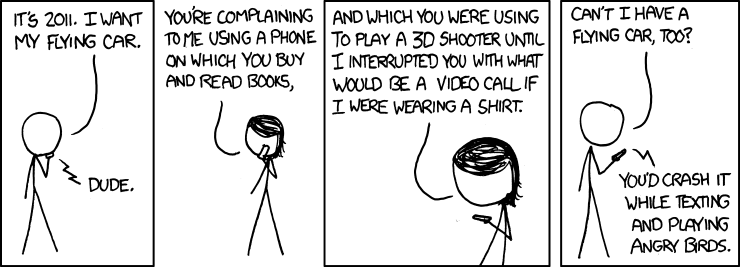
Flying Cars
Cartoon from xkcd.com :"Flying Car"
Today's Thing is about smartphones and other mobile devices. This is obviously a huge topic, but I wanted to take the time to highlight a few resources and topics.

What's a mobile device?

I often refer to my smartphone as "The computer in my pocket that, oh, yeah, can also make phone calls." I use it all the time for various tasks, and very rarely for phone calls. But that's only one way of using a smartphone or mobile device.

The basic definition of a mobile device is that it's handheld, and typically has a touch screen or small keyboard, and weighs less than 2 pounds. There are all sorts of devices, running a variety of different operating systems, but iOS (Apple) and Android devices are probably the best known right now. There are also other devices that allow you to do some tasks easily, but are limited in others, and things like ereaders, designed to let you read books (or sometimes consume other media) but that are harder to create new material on.

What can you do with one? 

First, there are lot of tools you can use for academic research. We have an entire guide devoted to mobile device tools that will help you with classes and more.  The resource list has some other great pointers, too.

Here's some things I do regularly with my mobile devices:
  • Take a picture of a computer error message so I can look it up more easily later.
  • Keep track of progress towards goals.
  • Use my phone as a pedometer (it tracks how far I've walked each day)
  • Track health information to share with my doctor (there's even an app that will test your pulse rate using the camera's phone.)
  • Read ebooks (many people prefer a larger device, but I do most of my reading on my phone.)
  • Travel with my tablet and a Bluetooth keyboard. 
  • Keep track of things I need to do. 
  • Listen to music.
  • Track my budget. 
  • Look at stars (there are some fabulous stargazing apps out there, where you can point the device at what you're looking at, and it'll tell you what you're seeing.)
  • Track my knitting projects (both row/stitch counters and an app that lets me upload photos to Ravelry, a knitting social media site)
  • Manage my grocery shopping list
  • Keep notes on various things (like books to read) 
  • Use my phone as a metronome when practicing music.
  • And of course, occasionally play games. 

Things to do:

1) Do you have a smartphone or mobile device? Do a little searching for an app that will help you with a current goal or interest. Try it out.

2) Are you curious about mobile devices? If you're a student, staff member, or faculty member at UMF, you can check out a device from our Petting Zoo to try out in the library.  

3) Share an app or device you find especially useful (and how you use it) in the comments.

Thursday, November 21, 2013

Thing 5: Collaboration

xkcd cartoon: "Far Away"

We're getting to the time of the academic year where collaboration - and asking questions - is getting to be more and more relevant. So today's Thing is about collaborating online (and also some times when it might not be the greatest solution)


Approaches

There's a couple of different things going on here. One is that sometimes we want to be able to access a document from multiple places easily. (Google Drive, which will be the focus of an upcoming Thing, is a great tool here). Sometimes we want to be able to write a document but share it easily with other people - for example a handout or presentation notes. And sometimes we want to work with other people on something, whether that's a paper, a presentation, or a project.

And at other times, we may just have a quick question for someone (a professor, someone else in our class, a librarian, a friend.) 

Fortunately, the Internet can help!


Tools

If you use UMF's email (or Gmail on your own), you've got a way to collaborate built in. Several of them, in fact. The most basic is Instant Messaging, where you can have a text conversation with one or more people, and sort things out. You can also share documents through Google Drive (and you can have a chat on the document's page with other collaborators.)

I use IM all the time at home to collaborate on a project that involves a dozen people across four time zones - we use both IM and email for quick questions and also for more social conversations.

If you're not familiar with instant messaging, here's a few tips: 
  • Set yourself to "Available" and then find the person you'd like to chat to - some help from Google can get you started. You can also get help on group chats.
  • People can set their own availability (or status notes).
  • If you're focused on a particular conversation (like working on a specific assignment), it's polite to let people know if you need to step away for a minute or two.
  • If it's a casual conversation with friends, things are usually less formal (people may drift away, wander to the kitchen to make dinner, whatever.)
  • There are chat apps for smart phones, and many people use shorthand or brief responses, but you don't need to. Like conversations, chats will find their own flow.
  • You'll sometimes see people indicating emotions with emoticons, emoji, or by indicating an action like *hug* or :hug:
  • You can also format text - if you put *asterisks* around something Google Chat, it will make that word or words bold. If you do _this_, it'll put it in italics, and if you do -this- it'll strike it through.
Did you know the library has a chat feature? 
During a number of hours each day, you can reach one of the librarians on duty through the chat widget on our homepage. When the little yellow light bulb is lit, there's someone on the other end ready to help you with your library questions.

We can help point you to a resource, give you more information about library tools and options, and answer a lot of questions without you ever leaving your home.

Collaborative documents:
Google Drive also gives you access to shared documents. We'll come back to other features of Google Drive in the near future, but you can create a document, share it with other people, and all make changes at once. (Each person will have a different color icon.) You can see exactly what people changed.

Google has more help on collaborating on documents, of course. Besides editing, you can leave comments, or you can share a document without giving people editing permission. It is an incredible tool for working with other people.

Video chat
If you like actually seeing who you're talking to (and have access to a computer with a webcam, microphone, enough network speed, and enough quiet) you can also do video chats. Google Hangouts are one option, but so are tools like Skype. Video chats are just what they sound like: a chance to see and hear the person (or people) you're talking to.

Which is best?

Honestly, there isn't one best. It can be very hard to get tone of voice by chat or email (jokes and especially sarcasm or irony can come across very oddly). On the other hand, a chat or email chain gives you a written reminder of what was said, which can be very useful in some projects.

Some people also have different preferences: I do a lot of my conversations in email, some in IM, and very very few by video or phone for personal projects (because I'm often watching something on Netflix, knitting, cooking, or otherwise multitasking, and they don't mix as well with video/phone.) I know people who are the total opposite, though - they have video chat on all the time. 

Of course, there are also some times when face to face works best. The usual advice is to have face to face conversations for things where there's a lot of emotion involved (if you're upset about something, or frustrated, or need to figure out a better way to work, that's a good time.) And like the comic says above, sometimes *hug* just isn't enough.

Things to try:

  1. Try a method of communication you haven't tried before - or haven't used recently. You don't need to use it for a big project, you can check in with a friend.
  2. Try creating a document and sharing it with someone else (give them editing rights.) Maybe swap interesting recipes for the holidays. 
  3. Talk to the people you collaborate or work with regularly to find out their preferred communication method. (If you have an online contact book, you can use the notes field to remind you.)

Thursday, November 14, 2013

14 Things: Links for November 7th, 2013

I was having lunch in the snack bar yesterday when I saw the table signs talking about seasonal affective disorder, and that made me think of a couple of things worth sharing here.

1) Did you know the library has a sun lamp? 
 It lives in the Browsing Room, just opposite to Access Services on the first floor, and there's a binder with instructions in it. (Please do read the information before using.)

2) Do you find working in front of a computer at night keeps you awake? 
There's actually a reason for that - computers generally use a cooler light that's like daylight during the day, but that helps keep us awake at night.

There's a free application (for Windows, Mac, and Linux) that automatically adjusts the quality of light at night so that it's less disruptive to our bodies, making it warmer in color when the sun goes down. The app's called f.lux, and you can download it and get more information about the research behind it on their website.

3) One useful tool: 
A week or two ago, I was helping someone with scanning text, and for various reasons went looking for some OCR (Optical Character Recognition) resources - basically, that's the term for "takes the text in the image and makes it into text you can edit again".

Now, GoogleDrive will do its best to OCR the text if you upload a scanned image of text, and so do some tools like Evernote that we're going to be discussing in one of the upcoming Things, but sometimes you need something focused on that one task. If you do, here is a great round-up.

Thursday, November 7, 2013

Thing 4: Wikipedia

xkcd.com comic: "Misconceptions"
Wikipedia is an incredibly complicated topic. Some teachers forbid anyone to use it at all in their research. Other people (quite accurately) talk about some of the issues in Wikipedia culture and current process that are making it less useful than it could be. (And while I've picked an xkcd comic here that highlights what Wikipedia can be great for, there are others that highlight some of the issues, including this one about the danger of the citation ecosystem and this one about the dangers of trusting apparent citations.)

However, there are times when I find it an incredibly useful starting place (never my only source for research), and today Thing 4 is going to give you a quick overview, talk about some ways to use Wikipedia, and then give some screenshots to show you parts of the site you might not have clicked on.

A quick overview: 

What's a wiki? Wiki is a term for a particular kind of online tool that allows people to collaborate on information. It uses some specific markup language to create links to other pages on the wiki and to other sources, and you can also format information in different ways. Pages can be grouped together by categories, and there are also ways to make tables, include images or other documents, and search for a specific topic or term.

Some wikis are huge (Wikipedia has over four million pages in English), but many people use wiki software for smaller projects like coordinating within a department, documenting how things work, or keeping track of different kinds of information.

First tip: Many of the possible issues with the information in Wikipedia are an issue in other kinds of sources too - they're just less obvious. Just like there are great books out there and lousy books, or excellent peer-reviewed articles and quick fluff news pieces, you need to evaluate the actual content before you use it in your research.

What's Wikipedia? Wikipedia has been running since 2001. It is a volunteer project with over 77,000 active contributors. Like any really huge project (that's about 10 times the population of Farmington!) it has rules and policies to help things run smoothly. You can learn more about that on the About page for the English Wikipedia.

Of course, with that many people working, there are sometimes differences of opinion, and sometimes a rule or policy gets put into place that works really well for some topics but not for others. Plus, because it's done by volunteers, some entries have really amazing information, and others have almost nothing. Some topics also lend themselves to having a verifiable reliable source than others, too.

Second tip: You don't need to understand all the specific policies and guidelines to use Wikipedia as a resource, but it's good to remember there are some, and that they may lead to decisions that don't make much sense to the casual reader or user.


How can it support research? 

Wikipedia is an encyclopedia - and you should never use an encyclopedia as your only source for academic research. However, you can use it to get a better sense of a topic and help your research process. I use Wikipedia all the time to:
  • Get context for a historical event (when and where it occurred, who the major figures are.) 
  • Find the terms used within a specific field for a particular topic, so I can do better searches in other research tools. (As a reference librarian, I often get asked about subjects where I don't know the jargon of the field well.)
  • Look at the references for an article to find relevant primary and secondary sources on the topic so I can read them and make my own decisions about what they say.
  • Learn more about an area or region (population, major features, more than just where it is.)
  • Check the spelling of a name. 
  • Figure out what the next book in a series is. 
  • And of course, to find out about random topics that come up in conversation. 
I also find some tools, like the "On this day" and "In the news" sections featured on Wikipedia's front page to be a good way to brush up on current topics of interest or historical trivia. 


    Let's take a tour: 

    November 7th happens to be the anniversary of the day that Butch Cassidy and the Sundance Kid were probably killed in Bolivia in 1905, and the entry allows me to show off many of the interesting tools of Wikipedia. There'll be lots of images in this part, so click on the 'more' to get the images. If you're already familiar with the basics of Wikipedia, you can skip down to the Interesting Tools for the parts many people don't know about

    Thursday, October 31, 2013

    14 things : Links for October 31st, 2013

    Another entry in "Fascinating uses of technology", here is a semester-long project in which students in the UK recreated a section of London around Pudding Lane as it would have been before the Great Fire using a gaming engine. Their project blog goes into a lot more detail about their choices, how they did their research, and the technical and design implications, but the end result is a great way to get a view into history.


    Curating the best tech skill resource sites: 
    Want to learn something techie? There are lots of places to learn - so many it can be overwhelming. Bento exists to pull together some of the best resources for different computer programming languages and other skills, as well as telling you a little bit about what they do. Start by clicking on the HTML box, and it'll show you what languages and skills build on that box.

    That's it for this week! Join us next week for Thing 4 in our series.

    Thursday, October 24, 2013

    Thing 3: All those things to do

    "The General Problem" from xkcd.com - click through to see the strip and mouseover commentary.
    We all have a lot to do, and a lot to keep track of - and technology can definitely help us out. Today's Thing is going to talk about a couple of different approaches, and touch on some of the many tools you can use to help you.

    Approaches

    Calendar-based: Some people work best by blocking out time for different tasks - for example, you might schedule out some times when you are in class, some for dealing with homework, some for replying to email, and so on.
    • Pros: Ability to plan ahead. Able to see how you're spending your time and adjust.
    • Cons: Not very flexible, especially if you work with or rely on the work of others. Can require lots of rearranging if something takes more or less time than you expected. 
    • Tools: Calendar programs - Google Calendar, iCal, etc.
    To-Do list: Another common approach is to put things on a to-do list and check each item off as you do it.
    • Pros: Simple, there are lots of tools to help you out.
    • Cons: Big tasks (write a paper, prepare a project) end up mingled with small tasks (reply to a simple email, get gas for the car.) It can be hard to sort out which ones you can do when or which are most urgent. 
    • Tools: Pen and paper, index cards, a number of software tools including Remember The Milk and Wunderlist. For those using GoogleApps (like UMaine folks do), there's also the Tasks tool.
    Getting Things Done: Developed by David Allen, this started out widely popular in the business world, but it works great for academia, too. This system starts by getting things you're worrying over out of your head and onto paper (or the screen) so you can deal with them. After that, it focuses on contexts.

    You group things by type of activity (like email, returning a phone call, errands, writing tasks, etc.) If you have 10 minutes, you look at your list of short items, and pick one. When you have longer focused time, you go to that list. There's more to the system than that, but the links below will get you started.
    • Pros: Deals well with different kinds of tasks, and different priorities. Lots of people talking about how they use it makes it easier to find adjustments that work for you.
    • Cons: Takes some time to learn, need regular reviews to keep it working well. As some of the links below point out, it was designed for a time when we didn't always have most tools readily available.
    • Tools: All sorts - check out the links below for some ideas. Basically, you want something that will handle calendar items (meetings) and something that will handle lists, preferably with tagging or another way to identify contexts.


    Choosing tools:

    There are tons of different tools out there - partly because people want different things. I've found that I need a tool that lets me move items around within a list easily, and one that lets me add an email to my task list. You might need something different!

    If you're not sure, try out a couple of free tools, and see what you like and don't like. You might also think about whether you want a task management tool that syncs to your phone or another mobile device, or whether you'll always use it on a particular computer.

    Besides the tools linked above, a lot of people use Evernote as a task management tool - we'll be talking about Evernote in a future Thing. If you're fond of lists, you might really like Workflowy.


    Further reading


    Things to try

    1) Spend a few minutes thinking about what you'd like to make easier in your task management life - do you have trouble keeping ahead of appointments? Coming back to email? Tracking projects with many stages?

    2) Try out at least one new tool - even if it doesn't do everything for you, it may help with a specific project or part of your life.

    3) Leave a comment here talking about which tip in the links you found useful, or a tool you liked exploring.

    Thursday, October 17, 2013

    14 things: Links for October 17th, 2013

    Welcome to today's roundup of a few interesting links. 

    Digital privacy: 
    We're going to cover some digital privacy issues in more depth later in our 14 Things project, but
    Facebook recently rolled out a few more changes in their settings, and that lead to several sites updating their comments on Facebook and privacy.

    I like ReadWriteWeb's overview, which explains how a number of settings work, and TechCrunch has an interesting piece about what we should be thinking about in regard to privacy settings.


    Useful tools: Lifehacker does a number of roundups, but their overviews of the recommended extensions for Chrome and Firefox might come in handy. (As always, not all of these fit the way I use these web browsers, but I usually find one or two new tricks in any roundup like this.)

    Why libraries? Neil Gaiman (a fabulous author) gave a speech recently on why our future depends on libraries, reading, and daydreaming. It's a fascinating look at why fiction matters, why imagination matters, and why developing the skills to think about not just what is, but what might be, make a difference to society.

    Coming next week, Thing 3!

    Wednesday, October 9, 2013

    Thing 2 : managing your email

    xkcd comic: stick figure discussion communication methods. Follow the link for full transcript.
    "Preferred chat system" from xkcd.com. Click through to see the whole comic.
    Email. We all get it. Sometimes a lot of it. And keeping control of it can be complicated. So, today's Thing is going to look at some different tools and approaches to managing your email. (My links are going to focus on GoogleApps, which is what UMF uses, but of the basics can be applied to other tools. Note that the campus system looks a little different than Gmail for individual use.)


    How do you use it? 

    • Lots or less? 100 messages a day takes different tools than 10.
    • Who sends it to you? Mostly the same people, or lots of different people? 
    • What kinds of email? Is it a discussion, general information, part of planning a project? 
    • What do you need to do with it? Emails you need to do something for (tasks) are different than those sent as a quick informational reminder.
    • What do you need later? Gmail has great search options, but if you look at particular messages (from a specific person, about a project) you might want a way to find them quickly.
    • How critical is email to your work? In some jobs, having email up all the time is important - it's how you get information about what's needed. In others (being a student, teaching), you might find scheduled checks work better for you.


    Approaches:

    Managing email - like a lot of technology questions - is one part choosing how you want to handle it, and one part picking the right tools.

    Scheduled checks: If you feel like you never get anything done because you're always answering email, try checking it 3 or 4 set times each day. Reply to anything you need to, create tasks if you need to, and then close your email until the next scheduled time. Some people find they're much more productive if they don't check email first thing in the morning, but wait until they've already done another task or two first. (This doesn't work with my job, but it might with yours.)

    Inbox Zero: In 2006, Merlin Mann explained his method of dealing with email overload, Inbox Zero. (His posts about it, and an hour long video talk about it can be found on his website.) In this method, you clear out your email each time you review it, create tasks (in a task management program - see upcoming Things for more) for each task related item, and then archive the email. This makes it much easier to see exactly what you need to deal with.

    Filtering: As an approach (how to use them is below), you may find it easier to keep track of email if you filter some of them into separate folders. For example, I filter business offers, and only check them when I'm planning to buy something, and I create filters for searches or groupings of email I want to find often.


    Tools:

    Keyboard controls: From your email inbox, type a ? to bring up the keyboard controls. These let you sort through email very quickly. I use k (advance to the next message), e (archive) and # (delete) all the time, but there are plenty of others.

    Filters automatically sort your email into folders or labels based on how you set them up. You can filter based on an email address, a word in the subject line (like an email list name), a word in the contents, whether something has an attachment, and much more. You can create them by trying a test search, then creating a filter when you get it right, and you manage filters from the settings menu.

    Labs has some additional features you can add to your email - you can turn them on by going to the settings icon (the gear), then to settings, then clicking on 'Labs'. I use Auto-advance, canned responses, quick links, and right-side chat. (Quick links is a great way to find specific email threads you refer to all the time.) Note that many of these are experimental and may change or disappear over time.

    Extensions and apps: There are tons of extensions and apps to help you manage your email - way too many to go into here, though some of the resources below mention them.

    Other needs - also too many to go into here, but we'll be talking about phishing and email security in a future Thing, and also about how to track tasks and to-do items.


    Further reading: 

    (Some of these posts are several years old, and the specific instructions or features may have changed - you can still use them for inspiration or ideas.)


    Give it a try:

    1) Read some of the linked reading, and pick at least one new tip to learn. (Try a keyboard command: they're quick and easy to learn.) If it works for you, try another one next week.

    2) Keep an eye on your email for a week or two. Are there automated emails you never read and could unsubscribe from? The easiest way to keep on top of your email is to reduce the number you get.

    3) Pay attention to the places you find email most frustrating. Try some of the tips above, and if that doesn't work, leave a comment here, and we can help you with some other resources.

    4) Have you tried getting to Inbox Zero? Does it work for you? Tell us how you did it or why it helps.

    Thursday, October 3, 2013

    14 things: links for October 3rd, 2013

    Welcome to our roundup of topic links about digital literacy, technology, and related resources, as part of our 14 Things project.

    Where'd that resource go?
    The shutdown of the US government probably isn't news to you at this point, but you might not have realized that it affects a number of online resources, including census data (from census.gov), the Library of Congress websites and catalog, or the ERIC database (articles are still searchable on EBSCO, but links to the eric.ed.gov site won't work.)

    Some further details:
    If you need help finding data from a government site, and can't find it, check in with us here at Mantor Library - we'd be glad to look at some alternate sources for you.

    In other news: (a few interesting links of the week)
    (Got a great link? You can leave a comment here, and we'll see it.)

    Thursday, September 26, 2013

    Thing 1: Learning things and sharing what you know

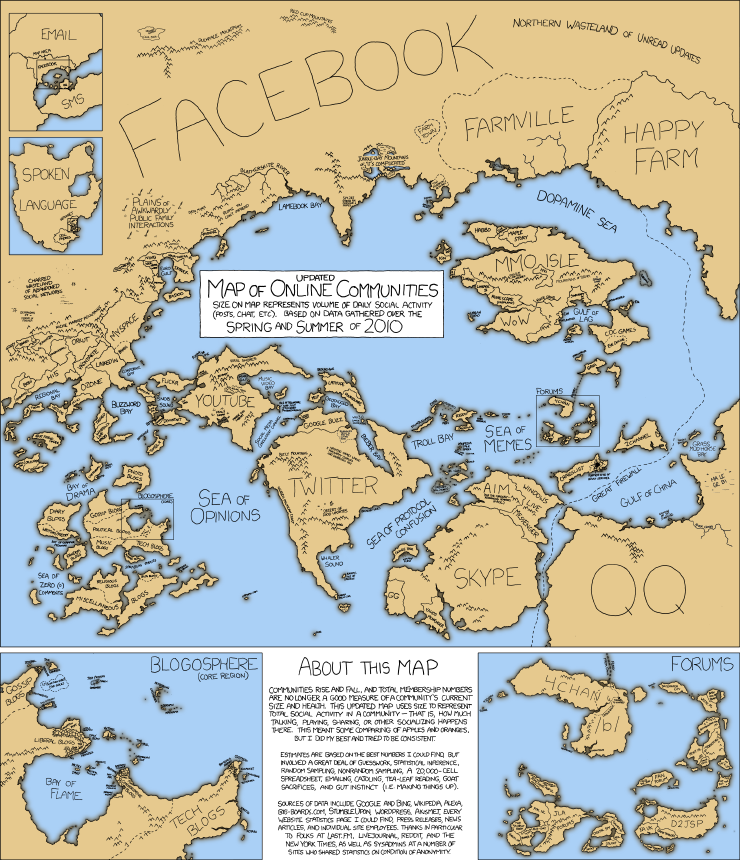
    Online Communities 2010 map

    It's a big world out there, and a big Internet. (The map is from xkcd, showing the approximate size and variety of online communities in 2010. It's even more complicated now.)  

    Technology and resources change all the time, and it's hard to keep up with what's new, what you need to worry about, what would solve a problem for you if you only knew about it, or just what's usefully cool. One way to solve this is by building some low-effort ways to come across interesting new stuff into your life.

    People sometimes refer to this as a personal learning network (or PLN). Personal, because yours won't look exactly like anyone else's. Learning, because you want to look for the people who want to share information. And a network because you'll be connected to the people you read, then to the people they read and learn from, and so on.

    The best PLNs are about people being themselves. One of my favorite personal examples comes from a former job, where I was trying to help a high school senior find a reputable source to support a particular argument she wanted to make. I posted something to my personal blog, and half an hour later, I had an answer from someone who's an expert in that field, pointing me at a specific book we had in our library. I know that person from a totally different area of interest - she just had time that day to point me at the perfect thing.

    Most importantly, a PLN isn't about solving an immediate need - it's about keeping you aware of other things in the world, that you might find useful next month or next semester, or next year, or next time you're considering a research project. Over time, you'll learn that some sources are great for sorting out one kind of problem, or remember than this person probably has something in their archives that will help you out.

    Not everyone you know will share this kind of content. And of the people who do, some will do brand new content (like an explanation), some will share lists of links, some will share links with additional comment. Many people do more than one. Chances are, some of this will work better for you (or for a particular topic) than others. Try some different approaches and keep doing the ones that work for you.

    How do you build a personal learning network? 

    1) Pay attention and keep track of interesting things (blogs, sites, books, resources, authors, speakers, podcasts, and more) you come across. We'll be talking about some tech tools to do this in an upcoming Thing in this series but a notebook or some sticky notes or a plain text file or computer bookmarks can work fine. Look for things on the edge of what you already know.

    2) If you're already using social media (Facebook, Twitter, RSS readers, etc.) you can do a lot by just adding a couple of resources on the topics you're interested in. Add a couple at a time, and take a look every few months to see if you need to rebalance.

    3) Be a 'real' person. Don't look at people just as resources - in my own networks, the people I like most are the people who are passionate about sharing what they love (and sometimes that's library stuff, and sometimes that's a great book on some other topic.) Think about sharing what you love, too - it's a great way to connect with others, and encourage them to share neat and useful things with you.

    4) Don't forget about hobbies or interests. Exploring something that's not for our job can feel a lot easier and more fun. (And we may find it easier to try something outside our comfort zone.) Plus, you might run into people who share both your hobby and your academic interests.

    The Year to Improved Productivity blog has a great post that talks about more resources and research on building a learning network. 

    Give it a try:  

    1) Find at least 3 social media accounts, blogs, or regularly updated resources. Try for one that talks about an area of interest, one that talks about tools or resources, and one that talks about a hobby.

    2) Explore at least one site that gives you brief (2-20 minute) overviews of something new. Some options include AtomicLearning (UMF subscribes, access through the MyCampus launchpad), TEDTalks (many topics), or CommonCraft (which explains technology in simple videos).

    3) Set yourself a low-key goal to find a new source for your learning. Maybe that's reading a general book about a topic you don't know much about by the end of the semester. Maybe it's finding a couple more resources for your list, and checking them regularly. Maybe it's asking someone you respect (a professor, a colleague, a student, a librarian) what they've learned recently outside the classroom and how they learned it.
     
    If you'd like some examples, you can check out some of the resources I find handy at my own blog. 

    Thursday, September 19, 2013

    14 things: 3 unexpected presentations of research.

    As promised in last week's intro to 14 things, we're doing a handful of links highlighting interesting things in the world of technology. Today's list is a tour of three videos, showing off how people are using technology to research or to describe their research in ways you may not have anticipated.
    Big Data + Old History is an explanation of how advances in technology help us refine masses of data to find out fascinating things. It's part of the PhD Comics series of videos of people talking about their research. (Captioned video, 2 minutes).


    The Fingerprint of Stars : A longer animation from PhD Comics, this time talking about stars, astronomy, the perception of the colors of the stars. It's a great example of integrating animation, voiceover, and use of color and design to convey complex information. (Not fully captioned, but most content is captioned in the animation. About 8 minutes.) 


    Bohemian Gravity: Check out Tim Blaise singing his Master's thesis on physics (or the basics of his thesis, anyway) to Queen's Bohemian Rhapsody. (Music video, lyrics below if you click through to YouTube. Also about 8 minutes.)


    Check in next week for our first 14 Things topic!

    Thursday, September 12, 2013

    14 things, coming soon

    from john.schultz @ flickr : used under Creative Commons license
    Have you seen the new changes in Gmail? Heard about Getting Things Done? Wondered what the fuss is about TEDtalks? Thought about Facebook's privacy settings and what they mean for you? Wanted to know about managing your email or your online notes better?

    Starting next Thursday (9/19/13), we'll be hosting regular posts on these topics and many more. Every other week during the academic year, we'll have a post highlighting a particular topic or issue. Our exact list of topics and dates is flexible, because we want to be able to respond if some great new resource or some new issue comes up, but some of the posts we're planning on include:
    • Managing your email better - everything from theories of how to do it to tools to help you keep track of the emails you need to come back to. 
    • Using Google Drive for collaboration - sharing, chatting, and revision tools. 
    • Conquering your to-do list: systems for task management, and tools to help you keep track. 
    • Passwords: what's secure, why, and some ways to choose good ones. 
    • How to learn new things: developing a network of resources, plus finding help when you need it. 
    • Making better presentations: sources for great images and ways to make more effective slides. 
    • Smartphones: what the computer in your pocket can do for you. 
    • Keeping track of references and notes: Great for academic research, but also for your home life. 
    • Your digital footprint: what can other people find about you online - and what you should know about that.
    • And more! 
    On the weeks we don't have a focused post, we'll be sharing a handful of interesting links on related topics. Please feel free to share more - or your own thoughts and tips - in the comments of any of these posts. You can find all our posts under the 14 Things tag.